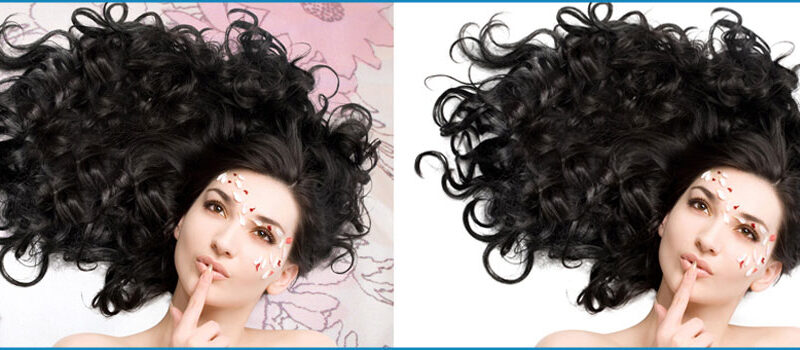

Layer masking is a powerful tool in Adobe Photoshop that allows you to hide or reveal parts of a layer. This means that you can make specific parts of an image transparent or opaque, allowing the layers below it to show through. This feature is particularly useful for image compositing, photo retouching, and creating collages.
Layer masking provides a non-destructive way to edit images. Rather than erasing or deleting parts of an image, a layer mask allows you to hide those parts without altering the original data. This makes it easy to make adjustments and changes to an image, as you can always go back and modify the image masking.
How to Use Layer Masking
1. Create a new layer or select the layer you want to mask.
2. Click the "Add Layer Mask" button at the bottom of the Layers panel.
3. Use a brush tool to paint the layer mask in black or white. Black will hide the corresponding parts of the layer, while white will reveal them.
4. Use various brush tools and opacity settings to refine your masking.
5. You can also use selections and filters to create masks, or load a saved selection as a mask.
Benefits of Layer Masking
1. Non-destructive editing.
2. Flexibility to make changes at any time.
3. Ability to combine multiple images and blend them seamlessly.
4. Easy to use with a brush or selections.
5. A wide range of creative possibilities.
In conclusion, layer masking is an essential tool in Photoshop that allows you to make precise and flexible edits to your images. With its non-destructive approach, layer masking gives you the freedom to experiment and create stunning images with ease.
The Importance of Layer Masking in Photoshop
Non-Destructive Editing:
One of the biggest benefits of layer masking is that it provides a non-destructive way to edit images. This means that you can hide or reveal parts of a layer without altering the original data. This makes it easy to make adjustments and changes to an image, as you can always go back and modify the layer mask.
Flexibility:
Layer masking allows you to make changes to your image at any time. If you need to make adjustments to a masked area, simply go back to the layer mask and make the necessary changes. This flexibility makes layer masking a great tool for photo retouching and compositing.
Image Combination:
Layer masking allows you to easily combine multiple images and blend them together seamlessly. This makes it a valuable tool for creating photo montages, composites, and collages.
Brush and Selection Tools:
Layer masking can be easily accomplished with brush and selection tools, making it a versatile tool for all skill levels. Whether you're a beginner or a professional, layer masking is a valuable tool to have in your Photoshop toolkit.
Creative Possibilities:
The range of creative possibilities with layer masking is virtually limitless. From photo retouching to image compositing, layer masking gives you the power to create stunning images that would otherwise be difficult or impossible to achieve.
In conclusion
layer masking is an essential tool in Photoshop that provides a non-destructive and flexible way to edit images. Whether you're a beginner or a professional, layer masking is a valuable tool that will allow you to bring your creative vision to life.


0 Comments