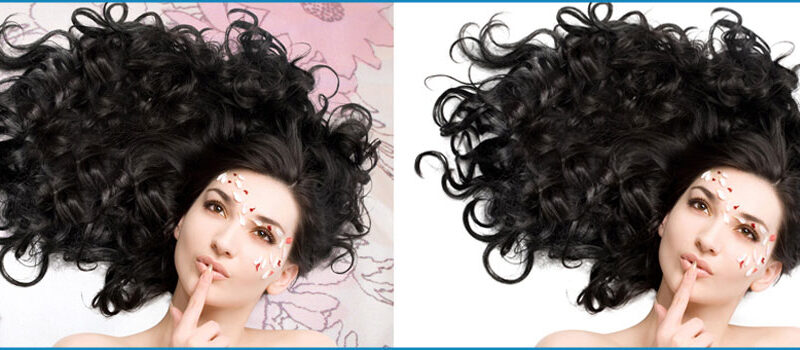

Photoshop is one of the most popular image editing software that is widely used by professionals, graphic designers, and photographers. It is packed with advanced features that allow users to create, modify, and enhance images with ease. One of the features that are essential for creating professional-looking images is clipping masks.
Clipping masks are a powerful tool in Photoshop that allows you to apply a layer to only a specific portion of another layer, providing more control over the image and enabling you to create unique effects. In this article, we will take an in-depth look at how to use clipping masks in Photoshop and the different ways you can utilize them in your designs.
Understanding the Concept of Clipping Masks
A clipping mask is essentially a mask that is applied to a layer to restrict the visibility of the content on that layer to only a specific area. The mask acts as a barrier, preventing any content outside of the masked area from being visible. To put it simply, the layer that is being masked acts as a stencil, and only the content within the stencil will be visible.
Creating a Clipping Mask in Photoshop
To create a clipping mask in Photoshop, you will need two layers: the base layer and the layer you want to apply the mask. Here are the steps to create a clipping mask:
2. Create a new layer by clicking on the "Create a new layer" button at the bottom of the Layers panel.
3. Select the layer you want to apply the mask to, and then go to Layer > Create Clipping Mask, or use the keyboard shortcut "Ctrl + Alt + G" (Windows) or "Cmd + Option + G" (Mac).
4. Your masked layer will now be clipped to the base layer, and only the portion of the masked layer that is within the base layer will be visible.
Using Clipping Masks with Text
Clipping masks can also be used with text in Photoshop, allowing you to create unique text effects. To use clipping masks with text, follow these steps:
1. Create a new text layer by selecting the Type tool and typing your text.
2. Create a new shape layer that will act as the base layer for the clipping mask.
3. Select the text layer and the shape layer, right-click, and select "Create Clipping Mask."
4. Your text will now be clipped to the shape layer, and only the portion of the text that is within the shape will be visible.
Using Clipping Masks with Images
Clipping masks can also be used with images in Photoshop, allowing you to combine multiple images into one unique image. To use clipping masks with images, follow these steps:
1. Open both of the images you want to combine in Photoshop.
2. Select the image that you want to use as the base layer and drag it to the top of the Layers panel.
3. Select the other image and drag it above the base layer.
4. With the second image selected, go to Layer > Create Clipping Mask, or use the keyboard shortcut "Ctrl + Alt + G" (Windows) or "Cmd + Option + G" (Mac).
Your second image will now be clipped to the base layer, and only the portion of the second image that is within the base layer will be visible.
Conclusion:
Clipping masks are a powerful tool in Photoshop that can help you take your image editing to the next level. Whether you're looking to create unique text effects, combine multiple images, or simply control the visibility of a layer, clipping masks can help you achieve the desired result. With this comprehensive guide, you now have the knowledge and skills to use clipping masks effectively and creatively in your designs.
FAQs:
Q.1 What is a clipping mask in Photoshop?
Ans. A clipping mask is a mask that is applied to a layer in Photoshop to restrict the visibility of the content on that layer to only a specific area. It acts as a stencil, and only the content within the stencil will be visible.
Q.2 How do I create a clipping mask in Photoshop?
Ans. To create a clipping mask in Photoshop, you will need two layers: the base layer and the layer you want to apply the mask. Select the layer you want to apply the mask to, and then go to Layer > Create Clipping Mask, or use the keyboard shortcut "Ctrl + Alt + G" (Windows) or "Cmd + Option + G" (Mac).
Q.3 What are the advantages of using clipping masks in Photoshop?
Ans. Clipping masks provide greater control over your images, allowing you to modify and enhance specific areas without affecting the rest of the image. They also allow you to create unique effects and combine multiple images into one.


0 Comments