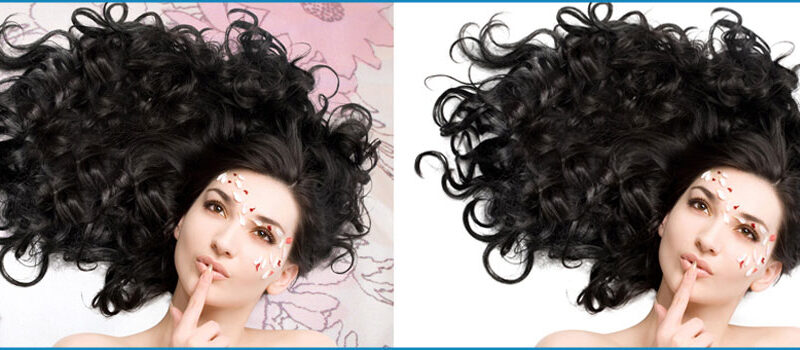

If you are a graphic designer or a photographer, you know how important it is to have the right tools and techniques to edit and enhance your images. One of the most powerful tools in your arsenal is image masking, which allows you to select and manipulate specific parts of an image while leaving the rest untouched. In this article, we will explore everything you need to know about image masking in Photoshop, from the basics to advanced techniques.
What is Image Masking in Photoshop?
Image masking is the process of selecting and hiding or revealing specific parts of an image. It is a technique used in photo editing to separate the subject from the background, create complex selections, and apply special effects to specific areas of an image.
There are different types of image masking techniques, including layer masks, vector masks, and alpha channel masks. Each technique has its own strengths and weaknesses, and choosing the right one depends on the type of image you are working on and the effect you want to achieve.
Layer Masks
Layer masks are the most common type of masking used in Photoshop. Layer masks provide a way to conceal or expose certain areas of a layer in image editing without causing any permanent modifications to the original image. To create a layer mask in an image editing software. When creating a layer mask, the initial step involves choosing the specific layer that you want to use the mask on. Subsequently, you need to locate the Layer Mask icon which can be found at the lower section of the Layers panel. Once the icon is identified, you can proceed to click on it, which will generate a mask for the selected layer. After that, you can use a brush tool to selectively hide or reveal specific areas of the layer.
Vector Masks
vector masks in image editing. Vector masks work in a comparable way to layer masks, as they enable you to hide or reveal particular areas of a layer in an image. However, instead of using a brush tool, vector masks use vector shapes to create the mask. This technique is useful when you want to create complex selections with smooth edges or when you need to resize an image without losing quality.
Alpha Channel Masks
Alpha channel masks are the most advanced type of masking technique used in Photoshop. They allow you to create selections based on the transparency values of an image, which means you can create precise selections with smooth edges and fine details. This technique is useful when you are working with complex images that require precise selections.
Advanced Image Masking Techniques
Once you have mastered the basics of image masking, you can start exploring more advanced techniques to take your photo editing skills to the next level. Some of these techniques include:
Refine Edge:
This tool allows you to refine the edges of your selection to create a more natural and seamless effect.
Channel Masking:
This technique involves using channels to create precise selections based on the color or brightness values of an image.
Gradient Masking:
This technique allows you to create a gradient effect on your mask, which can be useful when you want to blend two images together.
Conclusion [ Image Masking in Photoshop ]
Image masking is a powerful tool in Photoshop that allows you to create complex selections, apply special effects, and enhance your images in countless ways. Whether you are a professional photographer or a graphic designer, mastering image masking is essential to creating stunning and impactful images. If you adhere to the tips and techniques described in this article, you can elevate your abilities in photo editing and accomplish your desired outcomes.
FAQ:
Q.1 What is the difference between layer masks and vector masks in Photoshop?
Ans. Layer masks use a brush tool to hide or reveal specific parts of a layer without permanently altering the image. Vector masks, on the other hand, use vector shapes to create a mask, which can be useful when you want to create complex selections with smooth edges or when you need to resize an image without losing quality.
Q.2 How do I create an alpha channel mask in Photoshop?
Ans. To create an alpha channel mask, first, create a selection using any selection tool in Photoshop. Then, go to the Channels panel, click on the "New Channel" icon, and choose "Alpha Channel" from the drop-down menu. Paint over the selected area with white to reveal it, or with black to hide it.
Q.3 Can image masking be used to remove the background from an image?
Ans. Yes, image masking is a powerful tool for removing the background from an image. By using layer masks, vector masks, or alpha channel masks, you can create precise selections and remove the background while leaving the subject untouched.


0 Comments